

Appearance
Training Bookings
Training bookings are scheduled sessions run by a Trainer staff member. Use them to assess members before they drive, record pass or fail outcomes, and optionally charge for vehicle hire, trainer time, and mileage.
Booking lifecycle
The diagram below shows what happens from creating the session through to invoicing and payment, including notifications sent along the way. Click the diagram to zoom in.
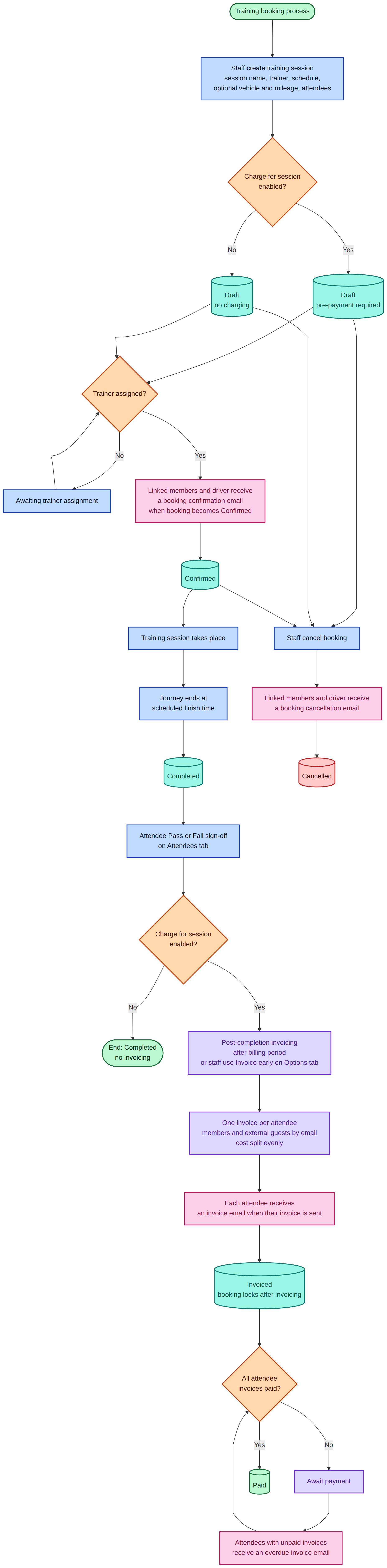
The training booking lifecycle from creation through to payment.
Create a training session
- Go to Bookings.
- Click New booking on the list or calendar view.
- Select Training as the booking type.
- Enter a Session name (required, like Open bookings).
- Choose the Trainer — only staff with the Trainer type appear here.
- Set the Schedule (date plus start and end times).
- Optionally assign a Vehicle and enter Expected mileage when a vehicle is used.
- Turn on Charge for this session if the attendee or organisation should be invoiced.
- Add Attendees — link existing members or enter guest name and email.
- Add optional Notes, then save.
When a trainer is assigned, the booking is confirmed automatically. Attendee outcomes start as Pending until the session is completed and signed off.
Use Find availability with booking type Training to search for free trainer, member, and vehicle slots. Your team Default training session duration setting (under Settings > Options > Members) controls the suggested session length.
Sign off attendees after the session
- Open the completed training booking.
- Go to the Attendees tab.
- Review each attendee, then choose Pass or Fail.
Pass and fail actions are available once the session is in progress or has completed. Sign-off remains available even after the booking is locked (for example, after invoicing). Users with permission to edit the booking can sign off attendees. A passed outcome satisfies the team Training booking required setting for that member type.
When an attendee is marked as Passed, you are taken to the Certificates report page for that attendee. Use the Certificate action on passed attendees to open it again later. Signing off all attendees as Passed opens the same page with every certificate just signed off.
Each certificate is shown as one A4 page. Use Print all in the page header to print every certificate, or Print this certificate on an individual sheet when several are shown. Back to booking returns to the Attendees tab.
Checklist training is separate
Members may still need checklist training completed under Settings > Updating Options > Members > Training must be complete before assignment? Both requirements apply when enabled.
Record end mileage
When a vehicle was assigned, record end mileage on the Mileage recording section of the booking form — the same shared section used by other booking types. Mileage billing follows your team Invoice mileage basis setting.
Chargeable sessions
When Charge for this session is enabled, estimated cost includes vehicle hire for the session duration, trainer hourly rate, and billable mileage. Turn the toggle off for free training sessions.
The session total is split evenly between all attendees on the Attendees tab. Each attendee receives their own invoice — linked members and staff are billed to their member record; external attendees are billed to the name and email recorded on the session.
Use Invoice early on the Options tab after the session completes, or wait for automatic invoicing after the billing buffer. View related invoices on the booking Invoices tab and in the edit-page snapshot bar.
When charging is enabled, you can also apply a Price override on the Options tab (hire, mileage, and trainer hourly rates).
Related guides
- Updating Options — configure which member types require a passed training booking
- Managing Staff — Trainer staff type
- Managing Members — training booking requirement and admin override
- Mileage and Invoicing — end mileage and invoicing behaviour